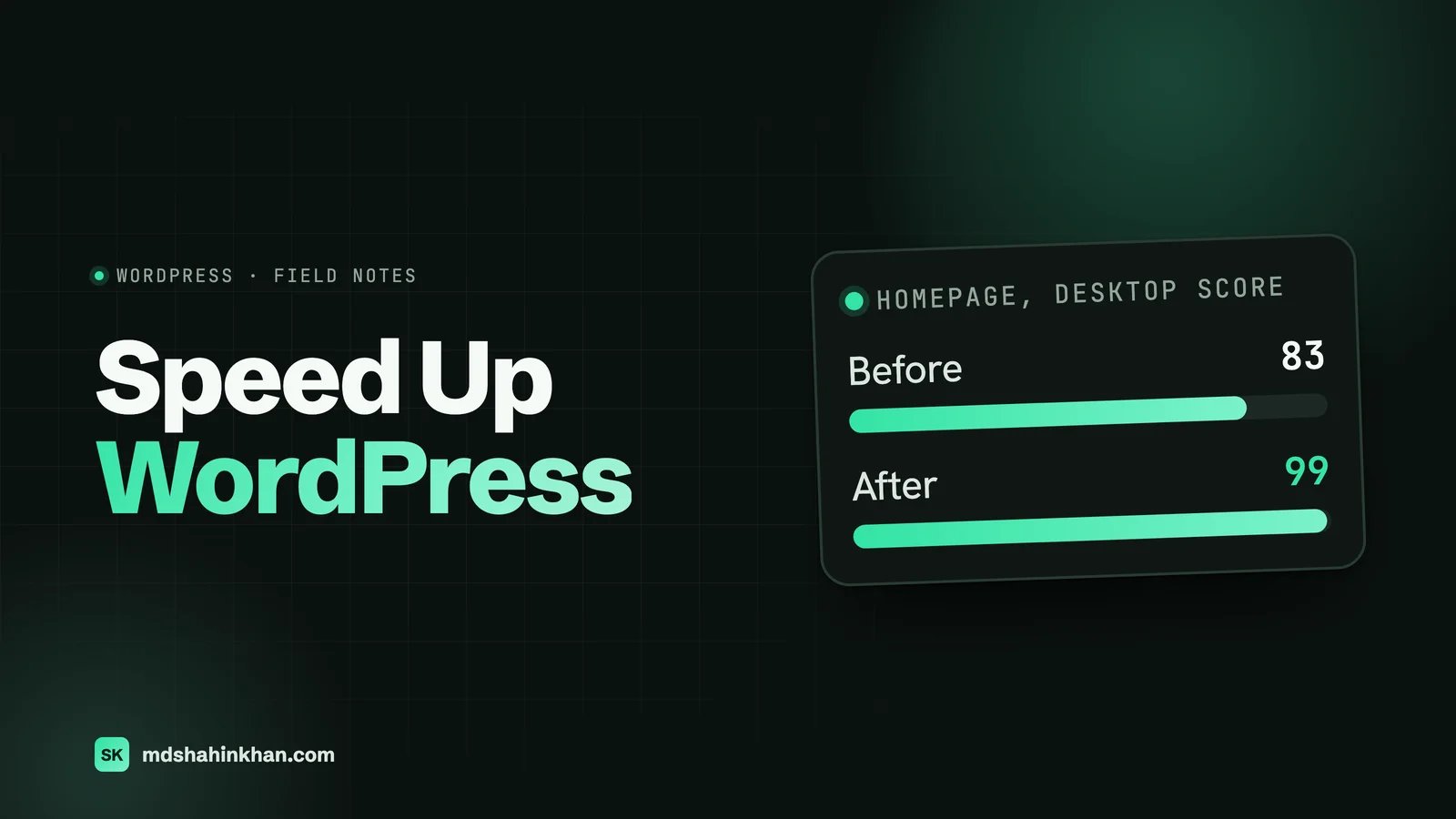
To speed up a WordPress site, measure it first in PageSpeed Insights, then fix things in this order: turn on page caching, compress and resize images, remove plugins you do not need, delay third-party scripts such as chat widgets, load fewer fonts, defer JavaScript, and put a CDN in front. If the server itself responds slowly after all that, the hosting is the problem. Those steps fix most small business sites; on this site they took the homepage’s mobile score from 60 to 75 and its desktop score from 83 to 99.
I build and maintain WordPress sites, most of them on Elementor, and “the site feels slow” is one of the most common things owners ask me to fix. The fixes are rarely exotic. What goes wrong is the order: people install a second caching plugin, compress a few images and chase a score, while the real cause (a chat widget, a slider, a slow server) sits untouched. This guide covers how to measure properly, the fixes in the order that pays off fastest, what I did on this site with the before and after numbers, what to do on an Elementor site, and what is not worth your time.
How to Measure Speed Properly
Before changing anything, get a baseline you can compare against. Two kinds of measurement exist, and mixing them up causes most of the confusion about WordPress speed.
- Lab data is a test run on demand: PageSpeed Insights’ performance score, Lighthouse in Chrome, GTmetrix. The mobile test simulates a mid-range phone on a slow connection, so its numbers look worse than most real visits. It is ideal for comparing before and after a change.
- Field data is what real visitors experienced over the last 28 days, collected by Chrome. It appears at the top of PageSpeed Insights (“Discover what your real users are experiencing”) and in Search Console’s Core Web Vitals report, once a site has enough traffic. This is what Google uses.
Google’s thresholds for a good experience, measured at the 75th percentile of real page loads, are:
| Metric | What it measures | Good |
|---|---|---|
| Largest Contentful Paint (LCP) | How long the main content takes to appear | 2.5 seconds or less |
| Interaction to Next Paint (INP) | How quickly the page responds to taps and clicks | 200 milliseconds or less |
| Cumulative Layout Shift (CLS) | How much the layout jumps while loading | 0.1 or less |
Run PageSpeed Insights on your homepage and your busiest service page, mobile and desktop, three times each, and write down the middle result. Lab scores move a few points between runs, so never judge a change on a single test.
Why WordPress Sites Get Slow
In the HTTP Archive’s November 2025 data, reported by Search Engine Journal, only 46.28% of WordPress sites passed Core Web Vitals, against 74.86% of Wix sites. That is not because WordPress is slow; it is because nothing stops a WordPress site from being built badly. These are the causes I find, roughly in order of how often:
| Cause | How you notice it | Usual fix |
|---|---|---|
| No page caching | Every visit takes a second or more before anything appears | A caching plugin or server caching |
| Oversized images | Heavy pages, slow main image on phones | Resize, convert to WebP, lazy-load below the fold |
| Too many plugins | Long lists of scripts and styles on every page | Remove, replace or limit to the pages that need them |
| Third-party scripts | Chat widgets, booking embeds, maps, trackers, review widgets | Delay until interaction or load on specific pages |
| Heavy theme or builder setup | Big layouts, sliders, animations everywhere | Simplify the page, use the builder’s performance settings |
| Too many fonts | Several families and weights from Google Fonts | Host fonts locally, fewer weights, preload one or two |
| Slow hosting | Slow first response even with caching on | Better plan or host |
The Fixes in the Order I Do Them
1. Turn On Page Caching
Without caching, WordPress builds every page from the database on every visit. With it, the server hands out a ready-made copy. This is the single biggest improvement on most small sites.
Use one caching plugin, not two. If your host runs a LiteSpeed server (many shared hosts do, including the one this site is on), use the LiteSpeed Cache plugin, because it works with the server’s own cache. Otherwise a well-known caching plugin does the job; WP Fastest Cache, WP Rocket and W3 Total Cache are the common choices. Some managed hosts cache at the server and ask you not to add a plugin, so check your host’s advice first.
2. Fix the Images
Images are usually the heaviest part of a page, and the main image near the top is often the “largest contentful paint” Google measures.
- Resize each image to about twice the size it is displayed at, not the 5,000-pixel original from the camera.
- Convert to WebP. WordPress supports it, and it is typically much smaller than JPEG at the same quality.
- Lazy-load images below the fold, which WordPress does by default. But make sure the main image at the top of the page is not lazy-loaded; delaying it makes the page look slower.
- Replace sliders and carousels at the top of the page with one strong image. A slider loads several large images to show one.
3. Cut the Plugins You Do Not Need
Deactivate every plugin you cannot explain the reason for, then check the site still works. Look especially for plugins that load their files on every page when they are only used on one (a form plugin needed only on the contact page, a slider used once). Many performance and optimisation plugins can stop a plugin’s files loading where they are not needed.
The number of plugins matters less than what they load. Ten small, well-built plugins can be lighter than one heavy “all-in-one” plugin.
4. Delay Third-Party Scripts
Chat widgets, review widgets, booking embeds, embedded maps, social feeds and marketing pixels each load code from another company’s servers, and you have no control over how heavy it is. They are the most common reason an otherwise well-built site stays slow.
- Keep only the ones that earn their place. A chat widget nobody answers is pure cost.
- Load them on the pages that need them, such as the booking embed on the booking page only.
- Delay them until the visitor interacts, or replace them with a light version: a static map image that links to Google Maps, a “Chat with us” button that loads the widget when tapped.
- Load tracking through one tag manager, not a separate script per tool.
5. Load Fewer Fonts
Each font family and weight is a separate file. A site using two families in four weights each downloads eight font files before the text looks right.
- Use one or two families and only the weights you really use.
- Host the fonts on your own site rather than loading them from Google Fonts on every page view.
- Preload the one or two font files used at the top of the page, so the headline appears in the right font without a flash.
6. Minify and Defer CSS and JavaScript
Your caching plugin can minify files (remove spaces and comments), combine CSS files, and defer JavaScript so it does not block the page from appearing. Turn these on one at a time and check the site after each, on a phone as well as a laptop, because this is where things break: menus that stop opening, sliders that stop moving, forms that stop sending.
Two rules from experience: exclude jQuery from deferring if your theme or plugins rely on it, and be careful with “load CSS asynchronously” on page-builder sites, where it often makes the page flash unstyled for a moment before the design appears.
7. Put a CDN in Front
A content delivery network keeps copies of your files on servers around the world, closer to your visitors. Cloudflare’s free plan is enough for most small business sites and adds security as well. Caching whole pages at the CDN, as well as images and files, makes the biggest difference, but it needs care so logged-in pages, forms and carts are never cached for everyone.
8. Keep PHP and WordPress Current
Newer PHP versions run WordPress noticeably faster than old ones, and your host usually lets you switch in the control panel. Update WordPress, the theme and plugins regularly; it is also the most important thing you can do for security. Test the site after changing the PHP version, because very old plugins sometimes break.
9. Clean the Database, Last
Old revisions, spam comments and leftover data from deleted plugins make the database bigger. Cleaning them helps a little on older sites, but it is rarely the reason a small site is slow, so do it last, with a backup taken first.
What I Did on This Site, With the Numbers
This site is built with Elementor and launched in September 2026. On 17 September I ran Lighthouse on three pages, made the changes below, and ran it again:
| Page | Mobile score | Mobile LCP | Desktop score | Desktop LCP |
|---|---|---|---|---|
| Homepage, before | 60 | 8.5 s | 83 | 2.4 s |
| Homepage, after | 75 | 5.3 s | 99 | 0.9 s |
| Article page, before | 71 | 6.7 s | 86 | 2.2 s |
| Article page, after | 86 | 4.0 s | 98 | 1.2 s |
| Service page, before | 69 | 6.4 s | 94 | 1.5 s |
| Service page, after | 71 | 6.1 s | 99 | 0.8 s |
Layout shift was 0 to 0.001 on every page before and after. These are single runs, so treat small differences with caution; a fresh run on 30 September put the service page at 90 on mobile and 100 on desktop. The same day, two back-to-back desktop tests of the homepage scored 99 and 69. The difference was the cache: on the first, the server answered in 20 milliseconds; on the second, the cached copy had just been cleared and it took 1.56 seconds. That is exactly why one test proves nothing.
What I changed:
- Page caching with LiteSpeed Cache, which uses the host’s LiteSpeed server.
- CSS minified and combined; JavaScript minified and deferred, with jQuery and the tracking script excluded. I left CSS loading normally, because asynchronous CSS made the Elementor layout flash unstyled.
- Fonts self-hosted, with the three files used at the top of the page preloaded, and WordPress’s emoji script removed.
- jQuery Migrate removed, an old compatibility script nothing on the site needed.
- The homepage’s entrance animation driven by CSS instead of waiting for a script, and the homepage carousels loaded lazily.
- Whole pages cached at Cloudflare’s edge for visitors who are not logged in, with the cache cleared automatically when content changes.
One setting went badly: “remove query strings from static files”. It stripped the version numbers from file addresses, so after an update Cloudflare kept serving an old copy of a plugin’s script. I turned it off. If you use a CDN, leave that option alone.
The honest part: the mobile lab scores are still in the 70s and 80s, and the mobile LCP in the lab is above 2.5 seconds, because Lighthouse’s mobile test throttles the connection and the processor hard and these pages have large hero sections. That is the point where further gains cost design (smaller hero images, fewer effects), and I chose not to go further. Chasing 100 on mobile is rarely worth what it takes away.
Elementor Sites Specifically
Elementor gets blamed for slow sites, but in my experience it is usually how a page is built rather than Elementor itself.
- Use Elementor’s own performance settings (Elementor, then Settings, then Performance), which include optimised image loading and lazy-loaded background images.
- Build with containers rather than the old sections and columns; they produce much less code.
- Limit fonts and icon sets to what the design needs, and turn off Google Fonts loading if you host fonts yourself.
- Go easy on motion effects, sliders and carousels, especially at the top of the page.
- Keep add-on packs to a minimum. Each Elementor add-on plugin loads its own files; use its setting to turn off the widgets you do not use.
What Not to Bother With
- A perfect 100 on mobile. It rarely changes rankings or enquiries, and getting there often means stripping out things visitors like.
- A second caching plugin. Two caches fight each other.
- “Speed booster” plugins that promise everything. They usually duplicate what your caching plugin already does.
- Tiny database tweaks on a small site, before caching, images and scripts are sorted.
- Removing features visitors use (the booking form, the reviews) to gain a few points.
When Hosting Is the Problem
If pages are still slow to start loading after caching is on, and the first response from the server (Time to First Byte in PageSpeed Insights) stays high, the server is the limit. Cheap shared plans that pack many sites onto one machine are the usual cause, especially at busy times of day.
The fix is a better plan or a better host. This site runs on Hostinger’s Cloud Startup plan with the LiteSpeed server and Cloudflare in front. (That is an affiliate link: if you sign up through it I may earn a commission, at no extra cost to you.) Check the renewal price before you buy; my guide to what web hosting really costs compares renewal prices across the main hosts.
Do It Yourself or Hire Someone
Steps 1 to 3 and step 5 are safe to do yourself with a backup taken first. I would bring in a developer when changing CSS and JavaScript settings breaks the site, when third-party scripts you need are slowing every page, when Search Console’s Core Web Vitals report shows real visitors with poor results, or when the site has never been fast and nobody knows why.
Speed also affects whether Google keeps your pages at all: a site that times out when Google visits can lose pages from search, which my guide to a website not showing up on Google covers. And if you are weighing a move to WordPress for more control over speed, my comparison of Wix, WordPress and Squarespace shows how the platforms compare out of the box. For dental practices, law firms and auto shops, speed on a phone matters most, because that is where most of your visitors are; my pages on websites for dental practices, law firms and auto service centers show how I build for that. For how speed fits alongside the rest of local search, see my local SEO guide.
Frequently Asked Questions
Why Is My WordPress Site Suddenly So Slow?
A sudden slowdown usually follows a change: a plugin or theme update, a new plugin or script (often a chat or tracking tool), a traffic spike or a wave of bot traffic, your hosting plan hitting its resource limits, or the cache being turned off or cleared. A hacked site can also slow down while it sends spam. Check what changed around the day it slowed, look at your host’s resource usage, and test with recently added plugins deactivated.
Is WP Fastest Cache Free?
Yes. WP Fastest Cache has a free version on WordPress.org that handles page caching and the main minification settings, which is enough for many small sites. A paid premium version adds extra features. Whichever caching plugin you choose, use only one, and check first whether your host provides server caching that works better with its own plugin.
How Do I Check My WordPress Site Speed?
Run your homepage and busiest pages through Google’s PageSpeed Insights, on mobile and desktop, three times each. The top section shows real-visitor data once your site has enough traffic; the performance score below it is a lab test that is best for comparing before and after changes. Search Console’s Core Web Vitals report shows real-visitor results across the whole site.
Does Site Speed Affect SEO?
Yes, but less than most people think. Core Web Vitals are part of how Google evaluates pages, but relevance and content matter far more, so a fast page with weak content will not outrank a slower page that answers the search better. Speed matters more for visitors: a slow site on a phone loses people before they call, which is the bigger cost for a local business.
How Much Does WordPress Speed Optimization Cost?
It depends on the cause. If the fix is caching, images and a few plugin changes, it is a short job. If the site is built on a heavy theme, relies on many third-party scripts or sits on hosting that cannot keep up, it can mean rebuilding pages or moving hosts. Ask for before and after measurements on the same pages as part of any quote.
What Is a Good Page Speed Score for WordPress?
Aim for good Core Web Vitals for real visitors (LCP 2.5 seconds or less, INP 200 milliseconds or less, CLS 0.1 or less) rather than a particular score. As a rough guide, 90 or more on desktop and 70 or more on mobile in PageSpeed Insights is a well-performing small business site; mobile lab scores are deliberately harsh.
If your WordPress site feels slow and you want to know why, book a free 30-minute call and I will run the tests with you and tell you what I would fix first, whether or not we work together. You can also see the sites I have built.